
Docparser allows you to automatically export your parsed data to an SFTP server. Once configured, your parsed data can be securely transferred to a folder on your server without needing to manually download or upload files.
SFTP provides a secure way to transfer files between systems using an encrypted connection.
Before You Begin
To set up the SFTP integration, you'll need the following information:
- SFTP Host: The hostname or IP address of your SFTP server.
- Port: The port used to connect to your server (typically 22).
- Username: Your SFTP account username.
- Authentication credentials: Either a password or an SSH private key.
- Remote folder path: The folder on your server where you want your exported files to be saved.
Your SFTP account must have permission to write files to the destination folder.
Step 1: Add the SFTP Integration
- Open your parser in Docparser.
- Navigate to the Integrations section.
- Select the option to add a new integration.
- Choose SFTP from the available integrations.
This will open the SFTP configuration page.
Step 2: Enter Your Server Details
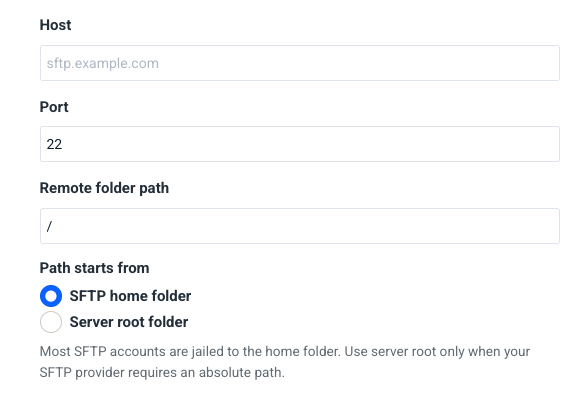
Enter the connection information for your SFTP server.
Host
Enter your SFTP server's hostname or IP address.
For example: sftp.example.com
Port
Enter the port your SFTP server uses. The default SFTP port is 22, but your server may use a different port.
Remote folder path
Specify the folder where Docparser should upload your exported files.
For example: /exports/docparser
Make sure the destination folder exists and your SFTP account has permission to write files to it.
Path starts from
Choose how Docparser should interpret the remote folder path:
- SFTP home folder: The path is relative to your SFTP account's home directory. This is the recommended option for most users.
- Server root folder: The path is interpreted from the server's root directory. Select this if your SFTP provider requires an absolute path.
Most SFTP accounts are restricted to a home directory, so the default option will usually work.
Step 3: Configure Authentication
Enter your SFTP Username, then choose one of the available authentication methods.
Option 1: Password
Select Password and enter the password associated with your SFTP account.
This is typically the simplest option if your SFTP provider supports password authentication.
Option 2: Private Key (SSH)
Select Private key (SSH) if your SFTP server uses SSH key-based authentication.
Enter the private key required to authenticate with your server. If your private key is protected by a passphrase, provide that as well.
Docparser supports both standard and passphrase-protected private keys.
Note: Your SFTP server must be configured to recognize the public key associated with your private key.
Step 4: Save and Test Your Connection
Once you've entered your connection details, click Save and Test.
Docparser will attempt to connect to your SFTP server using the credentials and settings you've provided.
If the test is successful, your integration is ready to use.
If the connection fails, double-check your server details, authentication credentials, and folder permissions.
Important: Existing Files May Be Overwritten
Docparser requires write access to the destination folder.
If a file with the same name already exists in the destination folder, it will be overwritten.
Make sure the selected folder is appropriate for your exports and does not contain files you want to preserve under the same filenames.
Troubleshooting Connection Issues
If you're having trouble connecting to your SFTP server, here are a few things to check:
| Issue | What to check |
|---|---|
| Connection failed | Verify the hostname and port. Make sure your server accepts SFTP connections. |
| Authentication failed | Double-check your username, password, or SSH private key. |
| Permission denied | Confirm your SFTP user has write access to the destination folder. |
| Folder not found | Verify that the remote folder exists and the path is correct. |
| Incorrect folder location | Try switching between SFTP home folder and Server root folder, depending on your provider's requirements. |
| Connection timed out | Check whether your server's firewall or network restrictions are blocking the connection. |
Need Help?
If you're unsure about your SFTP connection details, your server administrator or hosting provider should be able to provide them.
If you're still having trouble setting up your integration, contact our support team. We're happy to help!